
Accessibility-First Development: A Guide for Websites and Apps in 2026
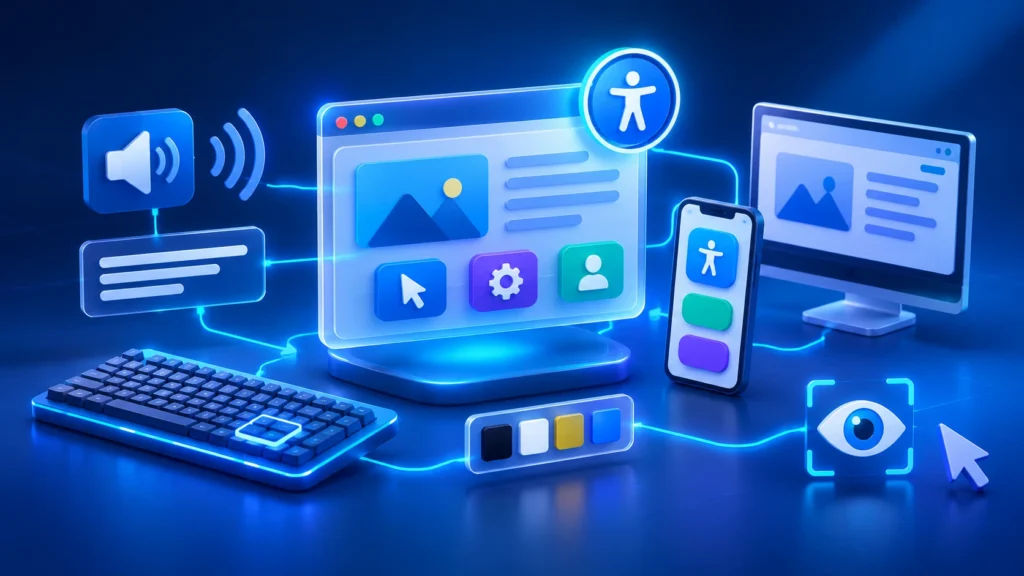
Accessibility-First Development: How to Build Better Websites and Apps in 2026
A website or application can look modern, load quickly, and offer powerful features, but still be difficult for many people to use. Small design decisions such as low-contrast text, unclear form labels, inaccessible menus, or buttons that cannot be operated with a keyboard can create barriers for users.
Digital accessibility addresses these barriers by making websites, applications, and digital services usable by people with different abilities, devices, and interaction needs. In 2026, businesses are increasingly treating accessibility as an essential part of product quality, user experience, and software development.
What Is Accessibility-First Development?
Accessibility-first development is an approach to designing and building digital products with accessibility requirements considered from the beginning of a project.
Instead of completing a website or application and checking accessibility only before launch, teams include accessible design patterns, semantic code, inclusive content, and usability testing throughout the development lifecycle.
This means considering how people interact with a product using keyboards, screen readers, voice controls, touchscreens, screen magnification, and other assistive technologies.
The goal is not to create a separate experience for a small group of users. It is to make the main product experience work for as many people as possible.
Why Digital Accessibility Matters in 2026
Businesses depend on digital products for customer onboarding, purchases, communication, account management, education, and everyday operations. When these experiences are difficult to access, people may be unable to complete important tasks or may leave before reaching their goals.
Accessibility also receives increasing attention from product teams, regulators, customers, and procurement departments. The European Accessibility Act began applying from June 2025 to specified products and services within its scope. Businesses serving European markets should understand whether their products and services are covered and what obligations apply to them.
Recent industry research also highlights a gap between building digital experiences faster and testing them thoroughly. Level Access’s 2026 State of Digital Accessibility research found that AI is accelerating several stages of the software development lifecycle, while fewer respondents reported similar acceleration in quality assurance and testing.
This matters because accessibility problems can be introduced during design, content creation, and development. If testing does not keep pace, those problems can reach users.
How Accessibility Improves the User Experience
1. Clearer Navigation
People should be able to understand where they are and how to move through a website or application. Consistent navigation, descriptive page titles, meaningful headings, and clear links make this easier.
These improvements are especially important for people using screen readers or keyboard navigation, but they also help visitors who are unfamiliar with a product.
2. Easier Forms and User Interactions
Forms are central to account registration, checkout, booking, contact requests, and many business workflows. Poorly designed forms can create unnecessary frustration.
Accessible forms use visible labels, clear instructions, understandable validation messages, and useful error descriptions. They should also allow people to complete tasks without depending exclusively on a mouse.
3. Better Readability
Readable content depends on more than font size. Text contrast, line spacing, layout, heading structure, and plain language all influence how easily people understand information.
Designing for readability can improve the experience for users with low vision, cognitive disabilities, temporary impairments, and people accessing content on small screens or in difficult lighting conditions.
4. More Flexible Interaction
Not every user interacts with a digital product in the same way. Some use a keyboard, others use touch, voice input, switches, or assistive technology.
Supporting multiple interaction methods makes products more flexible and reduces the risk of excluding people who cannot use a particular input method.
Understanding WCAG 2.2
The Web Content Accessibility Guidelines, commonly known as WCAG, provide internationally recognized recommendations for making web content more accessible.
WCAG 2.2 builds on earlier versions and includes additional guidance for users with visual, physical, and cognitive disabilities, including people using mobile devices.
The guidelines are organized around four principles, often summarized as POUR:
- Perceivable: Information and interface elements must be presented in ways users can perceive. Examples include text alternatives for meaningful images, captions for relevant video content, and sufficient text contrast.
- Operable: Users must be able to interact with the interface. This includes keyboard accessibility, usable controls, and enough time to complete tasks where time limits apply.
- Understandable: Content and interactions should be clear and predictable. Forms should provide useful instructions, and errors should explain how to correct a problem.
- Robust: Content should work reliably with different browsers, devices, and assistive technologies. Proper HTML structure and meaningful interface semantics help support this principle.
WCAG conformance is commonly discussed at three levels: A, AA, and AAA. Level AA is a frequent target for accessibility programs, but the appropriate requirements depend on the applicable policy, regulation, product, and audience.
Practical Accessibility Improvements for Websites and Apps
1. Use Semantic HTML
Semantic HTML gives content and interface elements meaningful structure. Use appropriate elements such as headings, navigation landmarks, buttons, links, lists, and form controls instead of relying on generic containers for every interaction.
For example, a real button communicates its purpose and interaction behavior more reliably than a clickable text element built from a generic container.
2. Provide Text Alternatives for Images
Meaningful images should have alternative text that communicates their purpose or relevant information. Decorative images should generally be handled so assistive technologies can skip them.
Alternative text should describe what matters in the context of the page. Adding long descriptions to every image is not automatically helpful, and AI-generated descriptions should be reviewed for accuracy.
3. Make Keyboard Navigation Reliable
Users should be able to access important content and operate interactive controls without needing a mouse.
Check that keyboard focus is visible, follows a logical order, and is not trapped inside menus, dialogs, or other interface components. Make sure users can open and close interactive elements using appropriate keyboard controls.
4. Improve Color Contrast and Visual Clarity
Text and important interface elements need sufficient contrast against their backgrounds. Do not rely on color alone to communicate information such as errors, status, or required fields.
For example, a form error should include a clear message or icon in addition to a red border. This makes the information easier to understand for people with different forms of color vision.
5. Design Accessible Forms
Every form field should have a clear label. Instructions should be available before users need to enter information, and validation messages should identify the problem and explain how to resolve it.
Where possible, avoid asking users to enter the same information multiple times. Make required fields clear and ensure that error messages can be identified by assistive technology.
6. Support Mobile Accessibility
Mobile applications and responsive websites need to work across different screen sizes, orientations, and input methods.
Interactive targets should be large enough and spaced appropriately. Content should remain usable when users zoom in or change text size. Gestures should not be the only way to perform essential actions when an alternative is practical.
7. Add Captions and Accessible Media Controls
Videos containing meaningful speech or sound should provide appropriate captions. Audio content may need transcripts, while media players should offer controls that can be accessed using a keyboard and assistive technology.
Do not rely on audio or visual presentation alone when the same information can be provided through another accessible format.
Accessibility Testing Should Be Part of Every Release
Accessibility cannot be confirmed through visual inspection alone. A page may appear correct while still containing problems that affect screen reader users, keyboard users, or people who rely on browser accessibility features.
A reliable testing process combines automated checks, manual review, and testing with assistive technologies.
Automated Accessibility Checks
Automated tools can identify many common issues, including missing form labels, certain contrast problems, invalid accessibility attributes, and structural issues.
They are useful in development workflows and continuous integration pipelines because they can detect regressions as code changes. However, automated tools cannot determine whether every interaction is understandable or whether alternative text accurately describes an image.
Manual Keyboard Testing
Navigate the application using only a keyboard. Check menus, dialogs, forms, dropdowns, interactive cards, and other controls. Confirm that focus is visible and that the order of navigation makes sense.
Screen Reader Testing
Test important workflows using screen readers on the platforms relevant to your users. Check whether headings, labels, buttons, status messages, and dynamic content are announced in a meaningful way.
Real User Feedback
People who use assistive technologies can identify barriers that automated tools and internal reviews may miss. Include accessibility feedback in usability research and involve users with different access needs when possible.
The Role of AI in Accessibility
AI tools are becoming part of accessibility workflows. They can help teams draft image descriptions, generate captions, identify potential interface issues, suggest code improvements, and create test cases.
These capabilities can make certain tasks faster, especially when teams manage large websites or applications. However, AI output should not be treated as proof that a product is accessible.
Generated alternative text may misunderstand an image. Suggested code may use incorrect accessibility attributes. Automated explanations may miss the context of a particular workflow.
A responsible approach combines AI-assisted work with developer review, automated testing, manual validation, and feedback from people who use assistive technologies.
How to Build an Accessibility-First Development Process
Accessibility becomes easier to manage when it is included in normal product and engineering processes.
During Planning
- Identify the users and interaction needs the product must support.
- Define accessibility requirements alongside functional requirements.
- Review applicable standards, customer requirements, and regulations.
- Include accessibility considerations in design and development estimates.
During Design
- Use accessible color palettes and readable typography.
- Design clear navigation, forms, and interactive states.
- Consider keyboard, touch, and assistive technology interactions.
- Review reusable components before they are adopted across the product.
During Development
- Use semantic HTML and accessible component patterns.
- Implement labels, focus states, and meaningful error messages.
- Include automated accessibility checks in the development workflow.
- Review third-party widgets and integrations for accessibility issues.
Before and After Release
- Perform keyboard and screen reader testing on important workflows.
- Review automated findings and resolve meaningful issues.
- Collect feedback from users and support teams.
- Retest accessibility after significant interface changes.
Common Accessibility Mistakes to Avoid
Some accessibility problems happen because teams treat accessibility as a checklist rather than an ongoing product quality practice. Common mistakes include:
- Waiting until the end of development: Late fixes can require changes to layouts, components, and workflows that could have been designed correctly from the start.
- Relying only on automated scanners: Automated tools identify useful issues, but they cannot evaluate every real user interaction.
- Using generic alternative text: Image descriptions should communicate relevant information, not simply repeat a filename or say “image.”
- Ignoring keyboard users: Essential actions should not depend exclusively on mouse interaction or complex gestures.
- Adding accessibility overlays as a complete solution: Overlays do not replace accessible design, correct implementation, and proper testing.
- Forgetting third-party components: Embedded forms, payment tools, chat widgets, and other integrations can introduce barriers into an otherwise accessible product.
- Failing to retest updates: New features and visual changes can introduce accessibility regressions.
Making Accessibility a Long-Term Product Investment
Accessibility is not a one-time development task. Websites and applications change as businesses add features, update content, integrate new services, and support more devices.
Teams should assign clear ownership, maintain reusable accessible components, include accessibility in quality assurance, and review important user journeys regularly.
It is also useful to track practical measures such as the number of critical accessibility issues, the time needed to resolve them, recurring problems across components, and feedback from users. These measures help teams understand whether accessibility is improving over time.
When accessibility is built into everyday development, it becomes easier to maintain and less likely to be overlooked during product growth.
Conclusion
Building accessible websites and applications is about more than meeting technical guidelines. It is about making digital experiences understandable, usable, and reliable for people with different abilities and interaction needs.
By applying WCAG guidance, using semantic code, designing accessible interactions, and combining automated checks with manual testing, businesses can improve product quality from the beginning.
In 2026, accessibility-first development should be part of how digital products are planned, designed, built, and maintained. The best time to make a product accessible is before barriers become part of the experience.
How Expoders Can Help
At Expoders, we help businesses design, develop, and improve websites, mobile applications, SaaS platforms, and custom software solutions.
Our development approach considers usability, maintainability, performance, and quality throughout the product lifecycle. Whether you are building a new digital product or improving an existing application, thoughtful accessibility practices can help create a better experience for more users.
Contact Expoders to discuss your next web or software development project.